Free PNG to 3D Model Converter
Convert any 2D PNG or JPG image into a highly detailed 3D model instantly. Free AI-powered PNG to 3D converter for game developers, designers, and hobbyists.
Have a flat 2D image that you desperately need turned into a 3D asset for your game, rendering project, or 3D printer?
Traditionally, converting a PNG into a 3D model required tracing references in Blender or Maya for hours—a slow, frustrating process if you just need a background prop or a quick prototype.
With the Hunyuan3D PNG to 3D Model Converter, that process is reduced to a few seconds. Simply upload your flat PNG image, and our AI pipeline will extrude, map, and texture it into a fully-realized .OBJ or .GLB file.
Here is how you can instantly scale your 2D graphics into full 3D assets.
The Fastest Way to Turn a PNG into 3D
Taking a flat pixel image and guessing the depth, volume, and unseen angles requires incredible computational reasoning. Older generators simply layered depth-maps on flat planes, resulting in models that looked like cardboard cutouts.
Our AI leverages the massive 10-billion parameter Hunyuan3D-2 architecture. It fully ‘understands’ the object in your PNG and generates true 3D geometry and topology, matching the object from all 360 degrees.
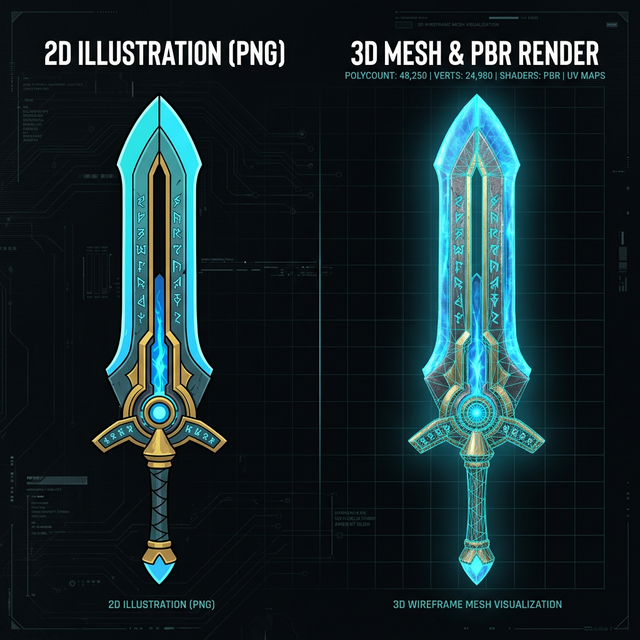
- For Game Devs: Convert dozens of 2D prop icons (swords, potions, crates) instantly into 3D gameplay assets.
- For Concept Artists: See exactly how your 2D weapon or vehicle concept looks in a 3D spatial environment to correct perspective errors.
- For 3D Printing: Turn a simple graphic illustration into a mesh that can be formatted as an
.STLfor your 3D printer.
Converting Your Image Step-by-Step
Our cloud-based AI converter is 100% free with no registration walls.
- Prepare Your PNG: Ensure your image contains a single, prominent object (like a weapon, character, or furniture piece). The AI works best with images that have a clean, solid, or transparent background.
- Upload to the AI: Drag and drop your PNG into the generator.
- Process and Download: Wait a few moments while the advanced Diffusion Transformer (DiT) builds the geometry and synthesizes PBR textures. Export your finished model as a
.GLBor.OBJ.
Tips for Creating Clean 3D Topologies from Photos
While the AI is powerful, its output is only as good as its input. Follow these guidelines:
- Avoid complex overlapping. If you are uploading a PNG of a character holding a sword in front of their chest, the AI may merge the sword into their torso. Give the AI clear, unobstructed silhouettes.
- Use neutral lighting. Strong shadows and highlights in your PNG will be baked into the resulting 3D texture. Flat lighting works best to ensure realistic PBR rendering in your game engine.
Frequently Asked Questions (FAQ)
What image formats are supported?
You can upload standard .PNG, .JPG, and .JPEG files to begin the 3D conversion process.
Does the AI generate textures?
Yes! The conversion is a two-stage process. First, it generates the bare 3D geometric mesh. Second, it maps the colors and textures from your original PNG onto the 3D model automatically.
Can I 3D print the generated model?
Absolutely. You can download the generated .OBJ file and import it into slicing software (like Cura or PrusaSlicer). For the best printing results, ensure you export your slicer file to .STL format.